 sqlr
Manual › Everyday work
Write, run and reuse SQL
An editor tab binds your query to a connection and optional database. Check that context before you run a statement, especially when several environments are open.
Run one statement or a script
| Action | sqlr preset on macOS |
|---|---|
| Run the selected text, or the statement at the caret | ⌘Enter |
| Run every statement in the editor | ⌘Shift+Enter |
| Stop the active query or script | Escape |
| Open a new editor tab | ⌘T |
| Open a new tab on the current connection | ⌘N |
| Close the active tab | ⌘W |
- Choose the tab's connection and database.
- Enter your SQL. The statement at the caret is tinted to show the run target.
- Select text if you want to run that text instead.
- Run with the relevant shortcut or toolbar action.
- Read the result and Messages below the editor.
A script runs statements in order on one session. Row-returning statements get separate result tabs; other statements report their affected rows. The output records the outcome of each statement. Stop a script at its first error, in General preferences, is enabled by default. Stopping prevents subsequent statements from starting; it does not undo statements already committed.
A session has one open result stream. A later statement can stop an earlier partially fetched result, including during a script. Rerun that statement separately if you need its remaining rows.
Complete names and format SQL
Suggestions open while you type; Ctrl+Space requests them manually. After FROM or JOIN, suggestions include relations. After a recognised alias and dot, they include its columns. Statement scope also helps completion understand aliases and common table expressions.
Accept a suggestion with Enter, or Tab when Insert completion on Tab is enabled. Editor preferences control automatic completion, its delay and keyword case.
Press ⌥⌘L to format the selection or the whole editor. Configure keyword case, indentation, line length, comma placement and statement spacing in Editor preferences.
Edit and navigate text
| Action | Shortcut |
|---|---|
| Find | ⌘F |
| Replace | ⌥⌘F |
| Next / previous match | ⌘G / ⌘Shift+G |
| Comment or uncomment lines | ⌘/ |
| Move line up / down | ⌥↑ / ⌥↓ |
| Copy line up / down | ⇧⌥↑ / ⇧⌥↓ |
| Delete line | ⇧⌘K |
| Select line, again to extend | ⌘L |
| Outdent / indent line | ⌘[ / ⌘] |
| Undo / redo | ⌘Z / ⌘Shift+Z |
| Indent / outdent | Tab / Shift+Tab |
| Next / previous tab | Ctrl+Tab / Ctrl+Shift+Tab |
The line shortcuts work on every line your selections touch, and each press undoes in one step.
Edit several places at once
The editor can hold several carets, and typing, deleting and pasting happen at each of them. The shortcuts follow VS Code.
| Action | Shortcut |
|---|---|
| Select the word at the caret, then each next occurrence | ⌘D |
| Select every occurrence | ⇧⌘L |
| Undo the last cursor operation | ⌘U |
| Add a caret | ⌥-click |
| Add a caret above / below | ⌥⌘↑ / ⌥⌘↓ |
| Add a caret at the end of each selected line | ⇧⌥I |
| Back to one caret | Esc |
To rename an alias in a statement:
- Put the caret on the alias and press ⌘D. sqlr selects the word.
- Press ⌘D again for each further occurrence. The search wraps to the top of the text and skips what is already selected.
- Press ⌘U if you went one occurrence too far.
- Type the new name.
Starting from a word, ⌘D matches the whole word with the same case, so id does not match order_id or ID. Starting from a selection, it follows the Match case and Whole word options of the find bar.
The editor also supports bracket pairing and automatic indentation. Set line numbers and soft wrap in Editor preferences. Soft wrap is also available through the command palette.
When the server reports a syntax-error position, sqlr underlines it. Hover or read the error details to see what the database rejected.
Reuse history and snippets
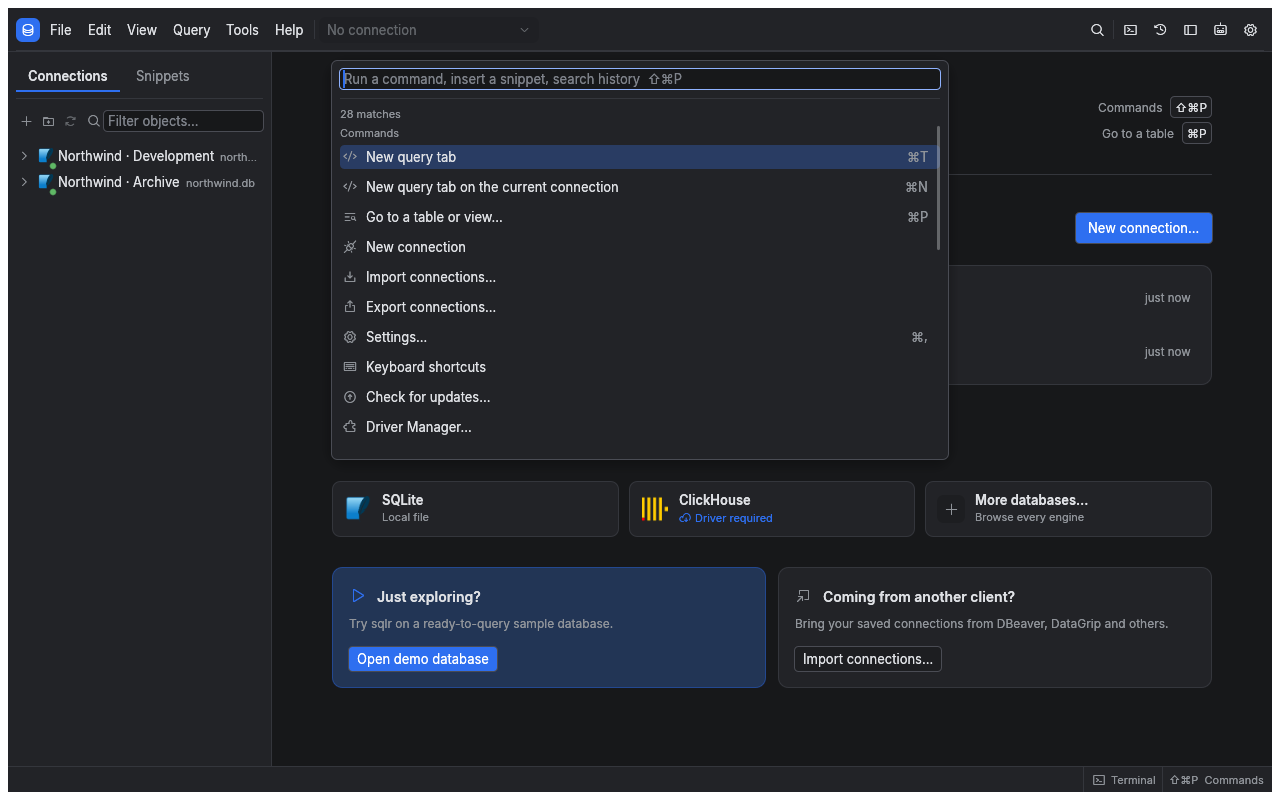
Open History from View to search statements by their text and connection. Entries include execution time, duration and outcome. You can insert a statement into the current editor, copy it or reopen it on its original connection and database. History entries are also searchable in the command palette.
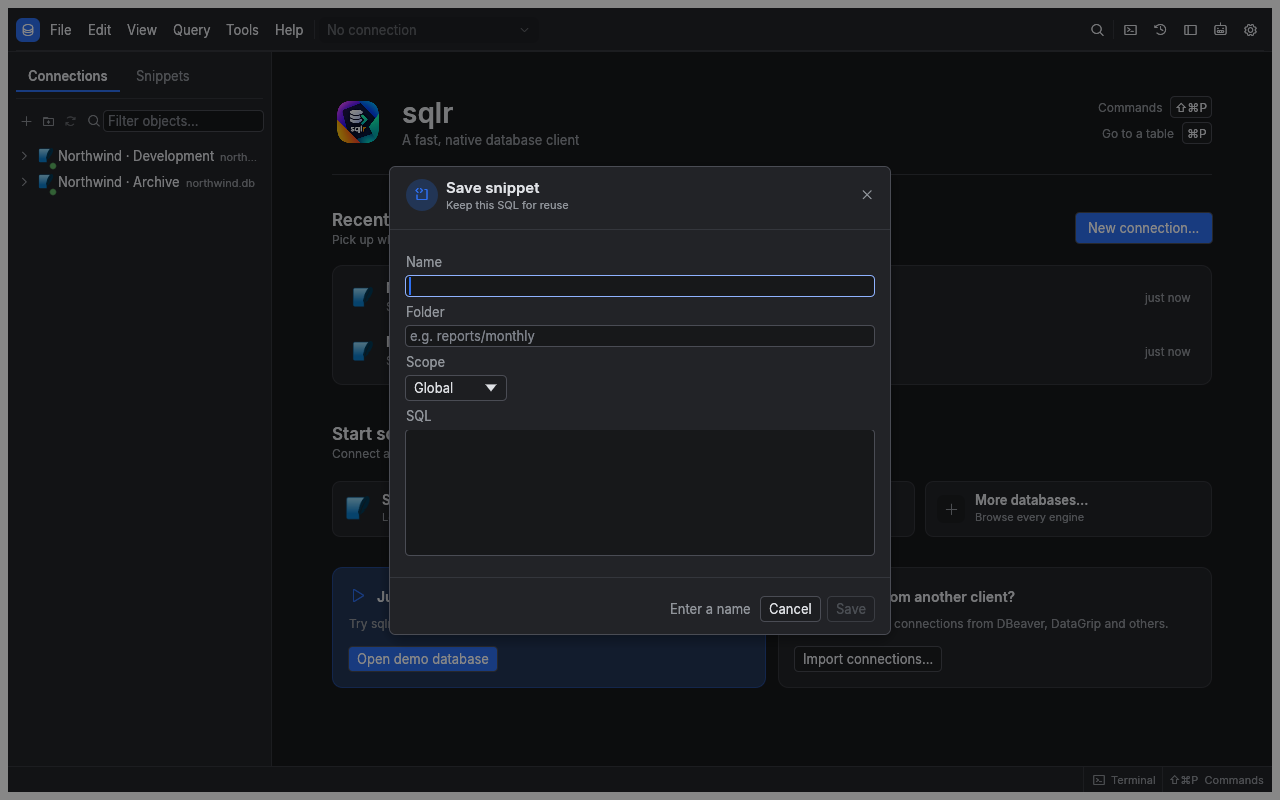
Use the save-snippet command, ⌘Shift+S in the sqlr preset, for a query you want to name and keep. Snippets can be global or connection-specific, with a description and tags. Insert a snippet into an editor or open it in another tab. Saving a snippet does not run it.
History records executed statements locally. The diagnostics SQL switch governs logs and reports; it does not disable query history.
Inspect a plan
Use ⌥⌘E for an explain plan on supported databases. ⌥⌘Shift+E requests explain analyze, which actually executes the statement. See Query plans before using analyze on writes or expensive queries.
Related
- Results and editing: understand fetched rows and messages.
- Profiles and transactions: control when writes commit.